
Gallery View
- Equipe Produit

- Feb 4
- 2 min read
Discover now our gallery view, allowing you to display your data as a picture gallery. This view is best used for
Qualitative image overview
Synergies with our PowerPoint Report feature, easily generate a corporate presentation on the images of interest
Actions
The gallery view looks like the below

From this view (refer to the numbers on the top right of the above picture), you can
Create a new submission
Filter your submissions
Import submissions
Choose the size of the image, amongst these options: Small, Medium, Large
Cards
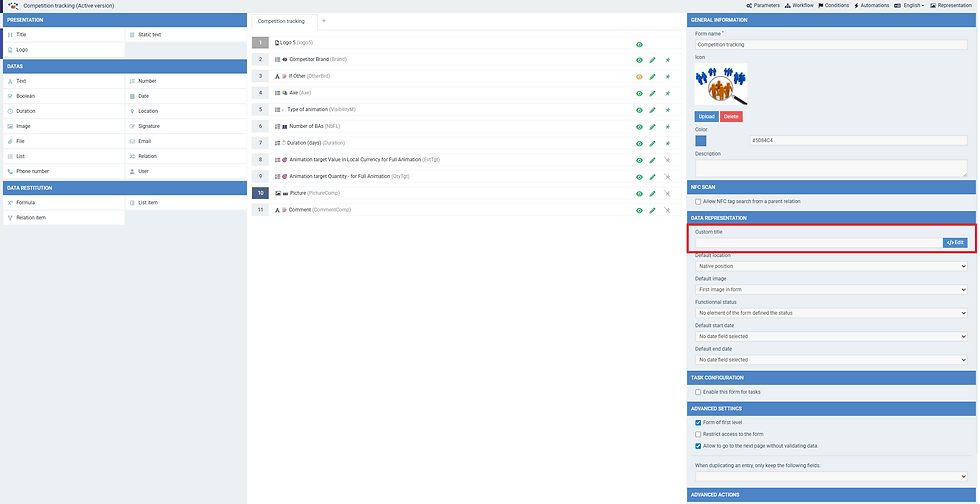
By default, if your submission contains multiple images, the image shown on the card is the first one from your submission. You can change that in the general settings of your form, where you can pick another field

If the selected field allows multiple pictures, the first one of the field will be shown on the view.
A card looks like this

1: 🖊️ This is the custom title of your submission. You can change it in the settings of your form, and include the value of some fields from your submission
2:🔒 This is the unique submission number. It can't be changed with some other information
3:🔒 This is the first name and last name of the user who created the submission. It can't be changed to some other information
4: 📁 By clicking here, it will download all pictures in the submission. If there is only one, the image file is downloaded. If there are multiple, a zip file with all the pictures is downloaded
5:👁️ By clicking here, it will open a carousel with all the pictures from that submission

5A: ⭕ Clicking on the circles will allow you to navigate between the photos of the submission on which you clicked
5B: ➡️ Clicking on the arrow will make you navigate to the next submission
6: ✔️ Ticking the checkbox allows you to select the submission. Once at least one submission is selected, it will allow you to perform actions on those submissions
Generate a report (you need to configure a report beforehand)
Export the submissions
Duplicate the submissions
Update one or multiple fields of the submissions (with the same value for all the selected submissions)
Delete the submissions (use it wisely!)


